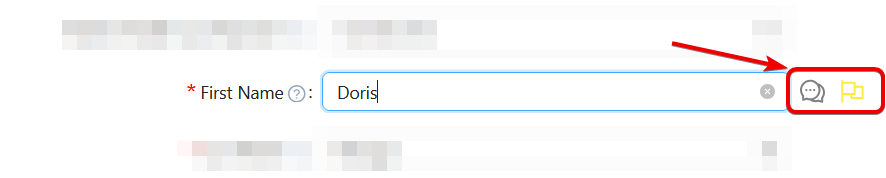
Beside every fillable field, a flag and comment icon will appear when hovered over:
You can flag any field that requires another user’s attention, such as sensitive prescription information or required signatures.
To flag a field, click the flag icon beside it. The flagged field will be highlighted in yellow, and the flag and comment icon will turn blue
All flagged fields will appear in the Form Review and Submission step at the end of the enrollment process
If a comment is added (by you or another iENROLL user), the comment icon will also appear in blue
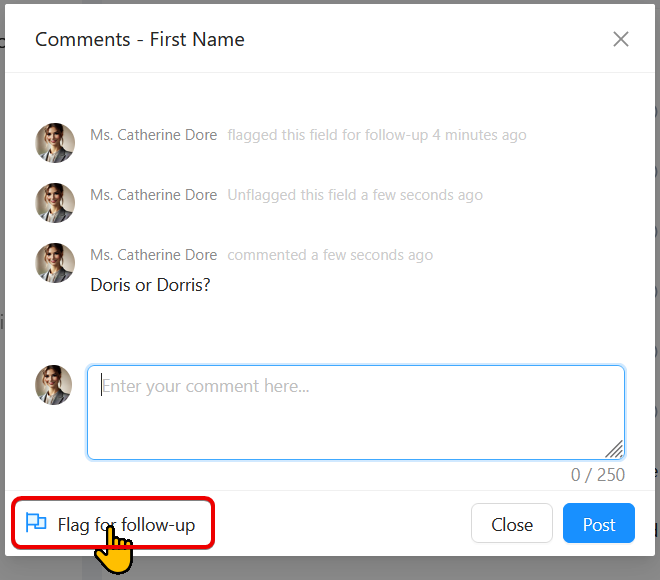
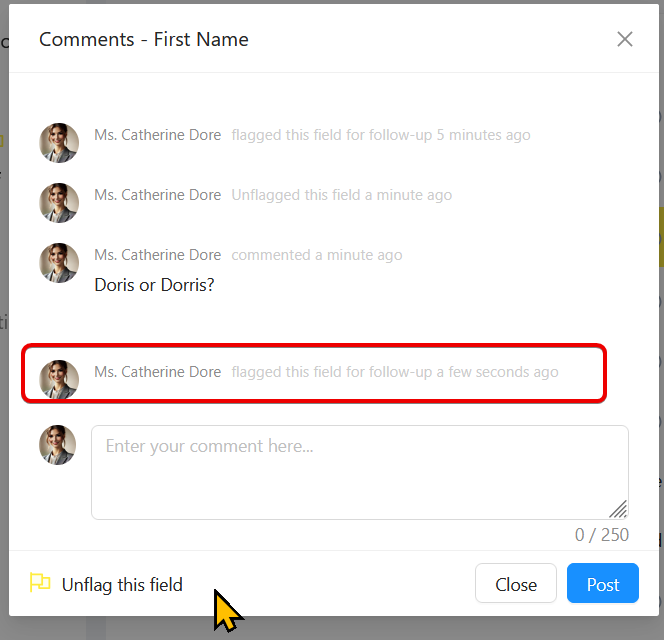
To view a comment, click the comment icon to open a pop-up. You can also reply to comments or flag them for follow-up
Discarding, Delegating, and Saving Enrollments
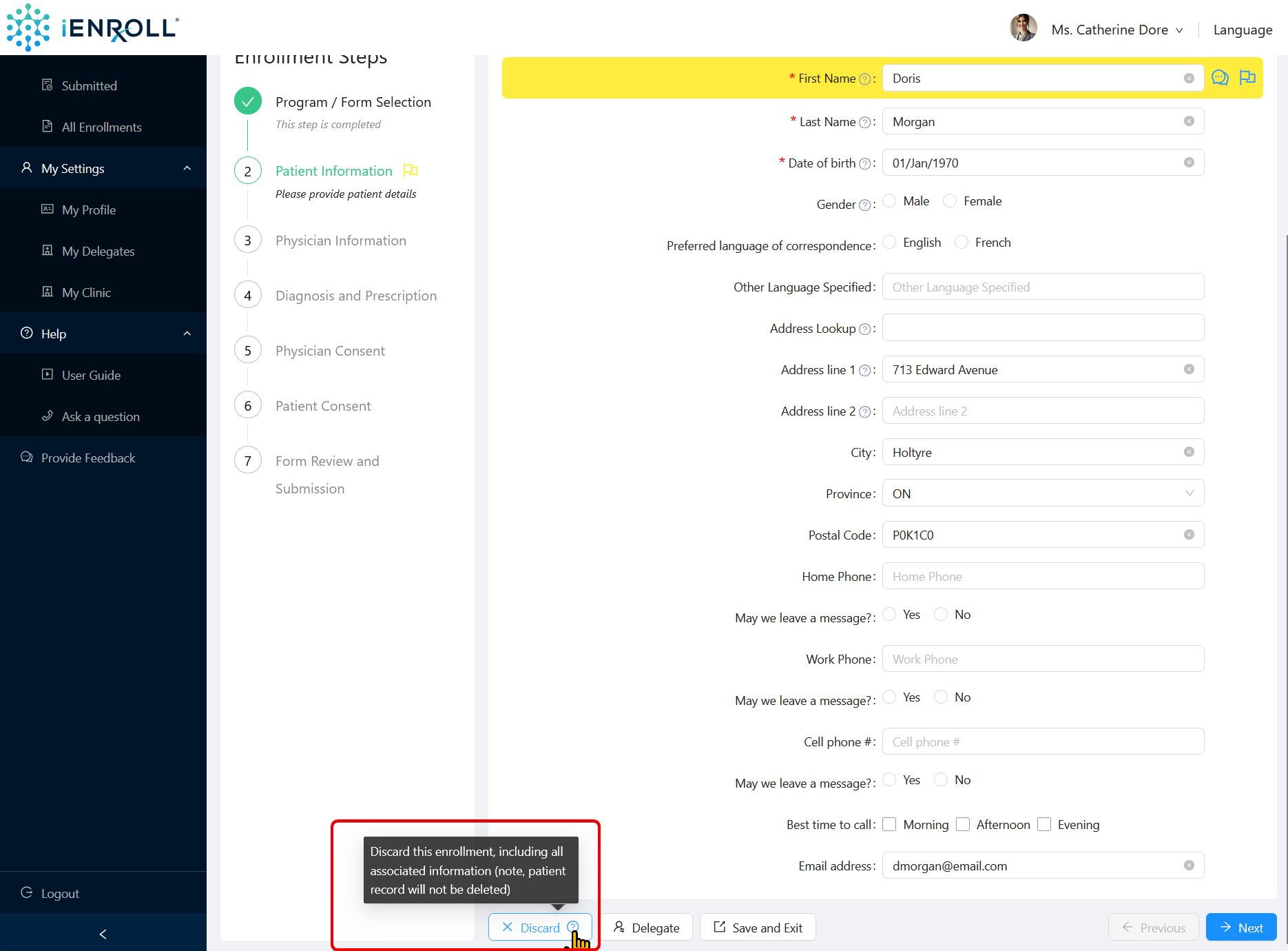
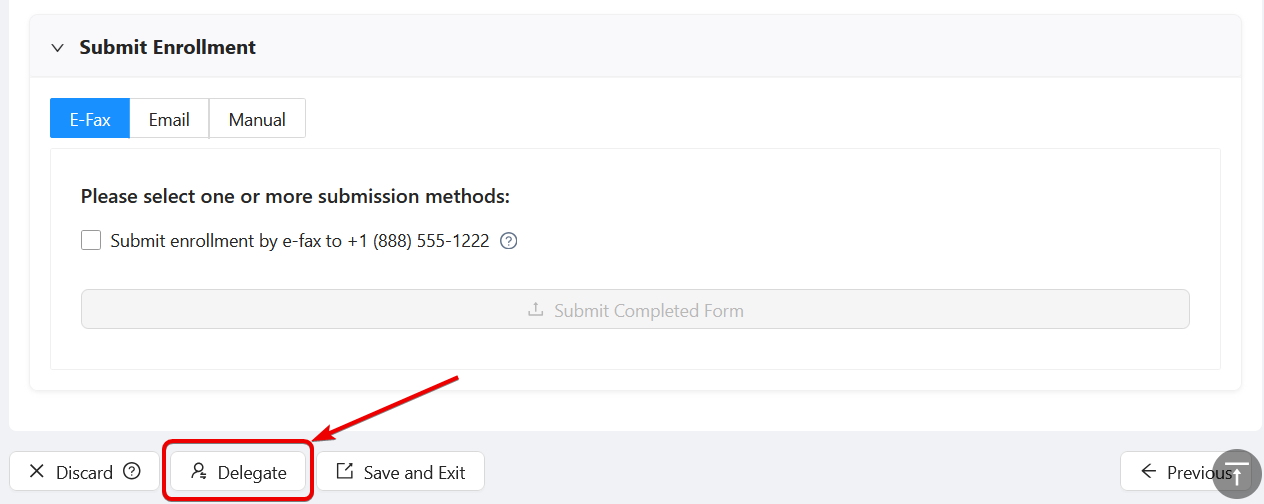
At the bottom of each section of an enrollment there are three options available: “Discard”, “Delegate”, and “Save and Exit”.
Discard
Clicking “Discard” to delete the enrollment form data. It will no longer appear in your enrollments.
Note: Patient information will remain in the iENROLL system to facilitate auto-filling future enrollments, unless you have disabled the “Save patient data” toggle in the Patient Information section.
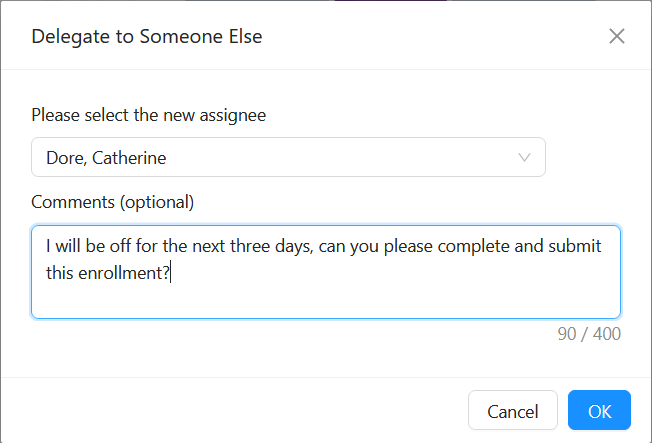
Delegate
Click “Delegate” to assign a specific enrollment to a colleague at your clinic. That colleague will be able to view, complete, and submit the enrollment.
Save and Exit
Click “Save and Exit” to save the enrollment form data and return to the enrollments page. All changes you have made to that enrollment will automatically be saved.
Favourites and Recently Used Forms
Add frequently used forms to your Favourites so that they always appear at the top. Simply click the star next to the form
Forms you use most often will also appear in the “Recently Used” list